Setu (सेतु) is Sanskrit for "bridge": the bridge between your laptop and your Bluetooth devices.
setu is bluetooth for Vyom: one keyboard-driven panel that opens instantly, with live data, a preview and a key for everything. It runs on any compositor with the layer-shell protocol (sway, Hyprland, river, niri, Wayfire, labwc…). In Vayu, the desktop it was built for, it replaces bluetooth-picker.py.
#Features
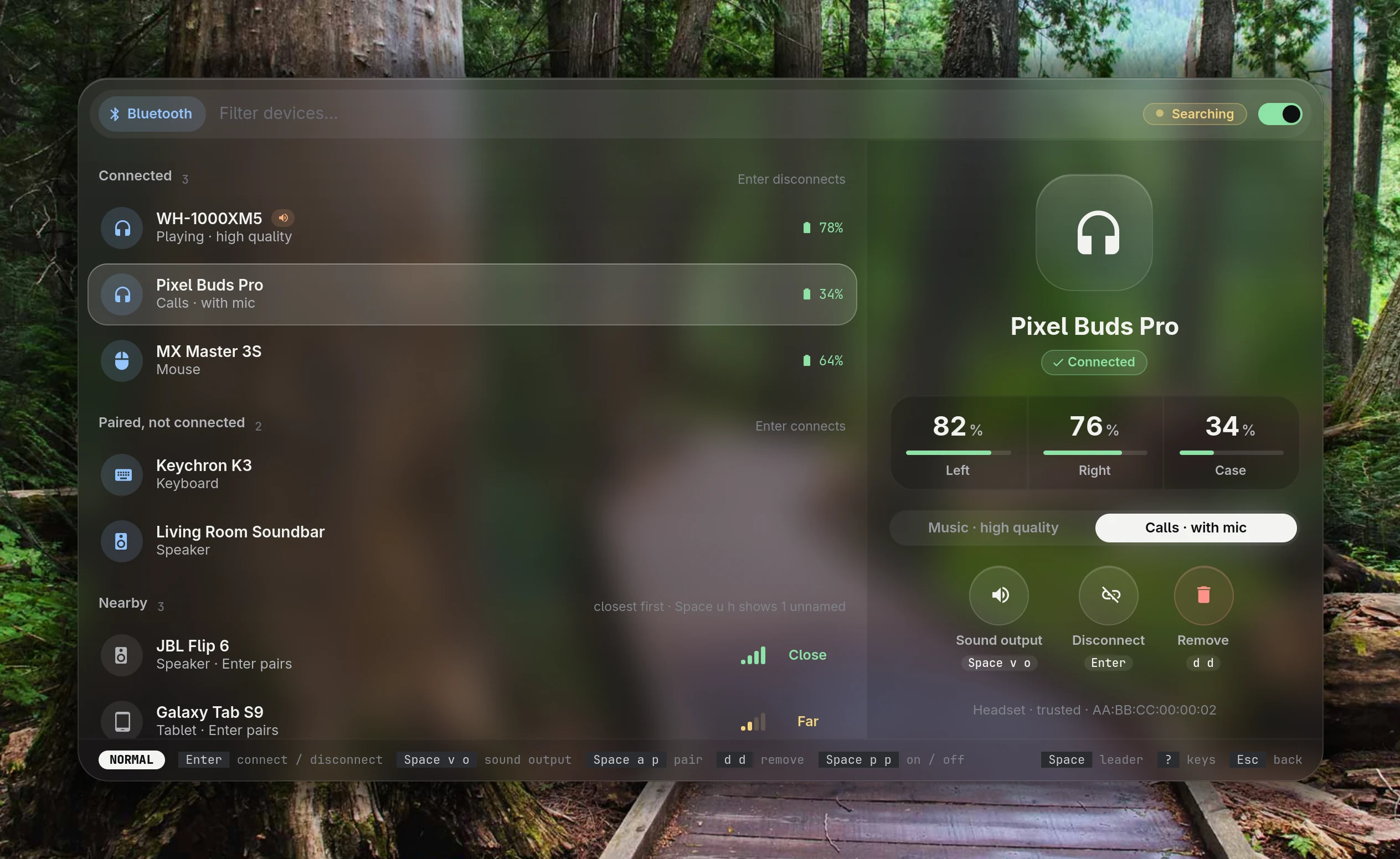
- Connected devices come first, each with its battery at the right: green, yellow under 20% ("charge soon"), red under 10% ("plug it in"); earbuds show the lower bud. A peach speaker mark after the name is the sound output. The device you pick shows big on the right: its icon in glass, its name, the batteries as one strip of numbers (left, right and case for earbuds), the audio mode, and round buttons with their keys under them (Sound output, Disconnect, Remove; Connect; Pair & connect, Pair only).
- Earbuds: left, right and the case, each on its own (any Google Fast Pair buds: Pixel Buds, OnePlus, Sony, JBL, Nothing…). BlueZ only knows one level for them, but Fast Pair buds announce each bud and the case, with a charging flag, in their Bluetooth LE advertisements. While the panel is open setu runs a quiet LE scan of its own and reads them: Left · Right · Case side by side in the strip ( red at 20% or less, yellow at 40% or less, a green bolt while charging, — when a part didn't say, e.g. in the closed case) and the lower bud in the list. It only listens: nothing is sent to the buds, and the scan stops when the panel closes. A reading not heard for two minutes says "As of …". The case only reports while the buds are in it or it's open, so its last level is remembered and shown with its age ("Case · 2 hours"). The advertiser is matched to the connected device by its name; if two connected devices share a name, setu doesn't guess.
- Headphones and speakers say what they're doing: "Playing · high quality" (A2DP) or "Calls · with mic" (HFP/HSP), and which one is the sound output. In the preview, Music / Calls switches between the two (
Space v m/Space v c);Space v omakes the selected one the sound output (throughpactl). - Paired devices that aren't connected say when they were last connected, and "Out of range" when they couldn't be reached.
- Nearby devices, closest first, with signal bars and a word (Close, Near, Far), found while the panel is open (the header says "Looking for devices"). Unnamed beacons hide behind
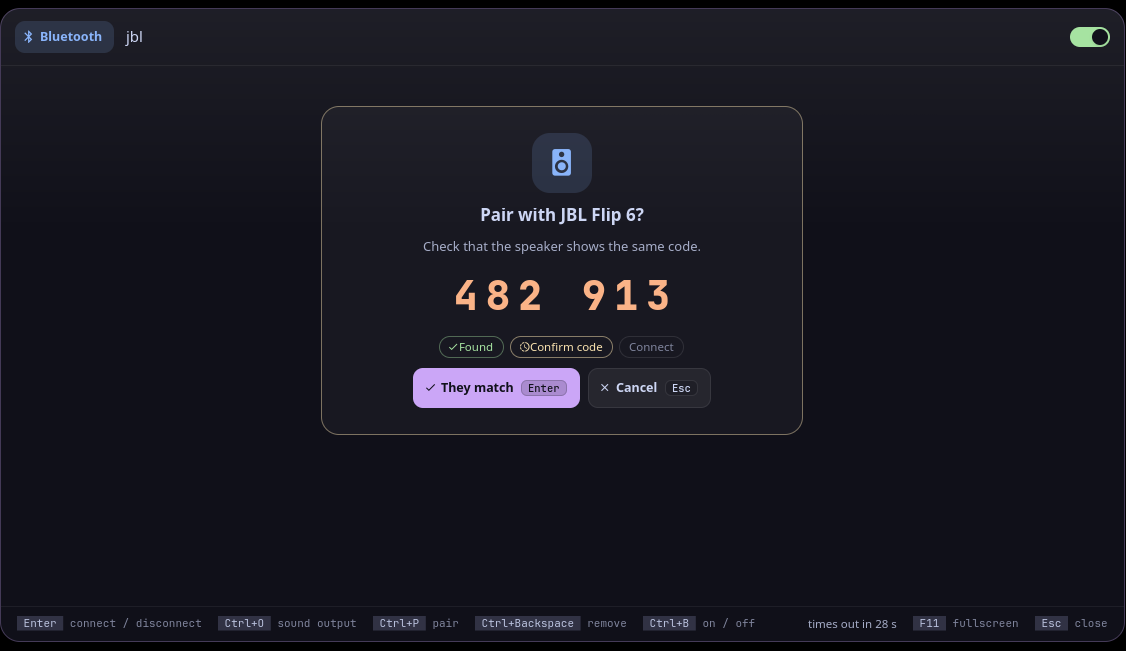
Space u h. - Pairing is a step of its own: the 6-digit code shown big, to compare with the device, with "They match" (
Enter) or Cancel (Esc), and the steps Found, Confirm code, Connect. A keyboard that wants a code typed gets it shown big too. - Errors say why, in plain words: "Device didn't answer: put it in pairing mode".
- It keeps working without a reboot. Connecting tries again by itself when BlueZ fails in a way a second try fixes (busy, a profile not ready, a dozing radio), and a device that's on but answers with an error counts as connected. If the chip stops answering (mostly after sleep), the panel says so and Reset (
Enter) wakes it: an rfkill block and unblock restarts the controller, no root needed. Turning Bluetooth on lifts a soft block by itself. - "Visible as
" in the header: the name the other device sees. - Remove asks first (
dd, theny); an on/off switch (Space p p). - Vim keys (Vyom 0.7): NORMAL and INSERT modes, counts,
Spaceas the leader with a which-key strip,?for every key andSpace Spacefor a palette of every action. - No
bluetoothctl, no Bluetooth service, no adapter, or Bluetooth off: the panel says so, and how to fix it. - Keyboard first: every action has a key, shown on its button and in the footer; the mouse works too.
- Never freezes the panel: slow commands run in the background.
#Install
#Requirements
- Vyom 0.7 or newer (Python 3.11+, PyGObject, GTK 4, gtk4-layer-shell, a Nerd Font)
bluetoothctl(BlueZ)- Optional:
pactl(PipeWire's pipewire-pulse, or PulseAudio) for what headphones are doing, Music / Calls and the sound output;upowerfor devices with several batteries
#Install
git clone https://github.com/Theyashsawarkar/setu ~/.local/share/vyom/plugins/setu
vyom reload           # pick it up (or log out and in)
vyom setu            # open it; run it again to close
Give it a key in your compositor, e.g. sway:
bindsym $mod+<key> exec vyom setu#Update and uninstall
git -C ~/.local/share/vyom/plugins/setu pull && vyom reload     # update
rm -rf ~/.local/share/vyom/plugins/setu && vyom reload # uninstall#Usage
Open it with vyom setu (or your key). It opens in NORMAL mode, where every letter is a key and typing changes nothing: j / k move, Enter connects or disconnects, dd removes (it asks), / types a filter (INSERT mode; Esc goes back). Space is the leader: wait a moment after it and a strip shows what comes next. While a pairing runs, only Enter (they match / try again) and Esc (cancel) work.
Vyom's vim keys work too: ? and Space ? list every key, Space Space is the palette, q closes, Esc steps back, Space u f is fullscreen, Space r refreshes, j / k move, gg / G jump, / searches.
Normal mode (where it opens; / types a filter)
| Key | Action |
|---|---|
Enter | Connect or disconnect the selected device (pairs a new one) |
d d | Remove (unpair) the selected device (y confirms) |
r | Rescan for devices now |
Leader (Space)
| Key | Action |
|---|---|
Space p p | Toggle Bluetooth on or off |
Space a a | Start pairing with the selected device, then connect it |
Space a p | Start pairing with the selected device (pair and trust, without connecting) |
Space c c | Connect the selected device |
Space c d | Disconnect the selected device |
Space v o | Set the selected headphones or speaker as the sound output |
Space v m | Switch the selected headphones to music (high quality, no mic) |
Space v c | Switch the selected headphones to calls (with the mic) |
Space u h | Toggle unnamed nearby devices (show or hide them) |
Space y a | Copy the selected device's address |
Space d d | Remove (unpair) the selected device (y confirms) |
While pairing
| Key | Action |
|---|---|
Enter | Confirm the pairing code matches (or try again after an error) |
Esc | Cancel pairing |
Keys that moved in this release still say where they went: Ctrl+Backspace → d d.
#Troubleshooting
- Nothing opens.
vyom listshows every installed tool, and why one is skipped (a missing requirement, or a Vyom that's too old). - It opened, then something failed. Look for a
Tracebackin the daemon's log,journalctl --user -u vyom -u vyom-daemon -b(without systemd:~/.local/state/vyom/daemon.log), and open an issue with it. - Pairing fails with "Device didn't answer". Put the device in pairing mode (often: hold its Bluetooth or power button until a light flashes) and keep it close, then
Enterto try again. - No Music / Calls switch. That needs
pactl(install pipewire-pulse) and an audio device that offers both. - No blur or rounded corners. That's the compositor: on SwayFX, add
layer_effects "vyom" { blur enable; corner_radius 20; shadows enable }.
#The Vyom family
Each tool is its own repository, so you install only the ones you want:
| Tool | What it does | |
|---|---|---|
| dvara | द्वार, gateway | The app launcher |
| ganit | गणित, mathematics | The calculator and converter |
| smriti | स्मृति, memory | Clipboard history |
| bhava | भाव, feeling, emotion | The emoji picker |
| tarang | तरंग, wave | Wi‑Fi and the hotspot |
| setu (this one) | सेतु, bridge | Bluetooth |
| doot | दूत, messenger | Your phone, through KDE Connect |
| patra | पात्र, vessel | Docker containers |
| akashvani | आकाशवाणी, voice from the sky | Notifications |
| raga | राग, melody | YouTube music and video |
| mudra | मुद्रा, gesture | Keybinding search |
| urja | ऊर्जा, energy | The battery at a glance |
| vishram | विश्राम, rest | The power menu |
| kendra | केन्द्र, centre | Quick settings |
#Contributing
Bug reports, ideas and pull requests are welcome: see CONTRIBUTING.md for the development setup and the few rules every tool follows, and CHANGELOG.md for what changed in each release. Please report security issues privately (SECURITY.md).
#License
MIT.